Contacts & Smart Lists · 1 min read
Bulk Actions - Add or Remove Tags
Using the Bulk Actions features in your Contacts/Smart Lists section, you can perform multiple one-off actions to selected or all contacts. Here’s how to add or remove tags using the bulk action feature:
Step 1: Choose Your Contacts
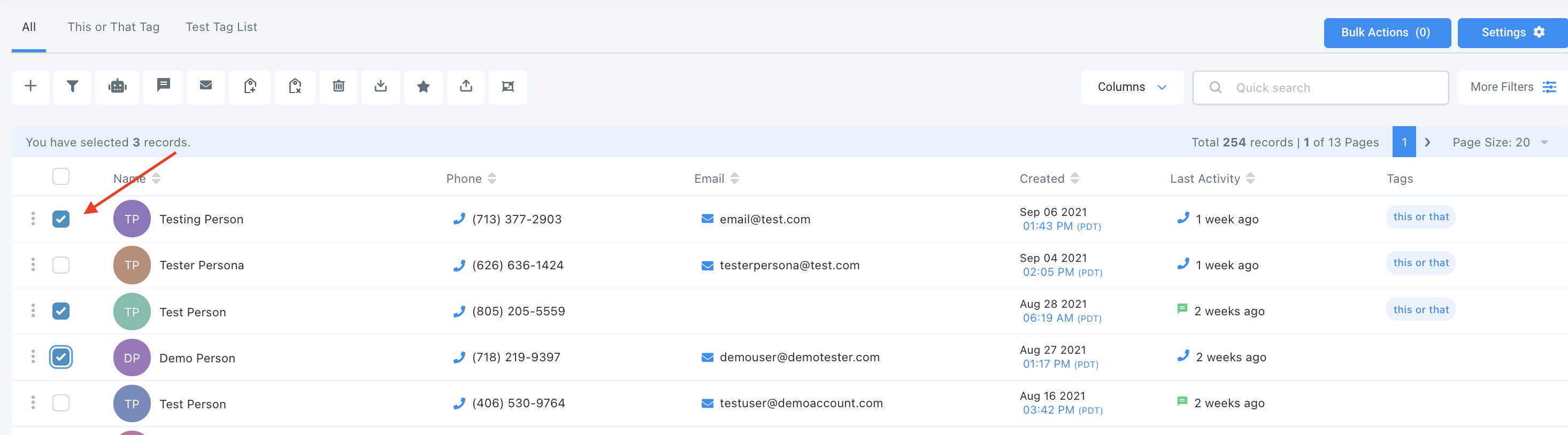
- Navigate to your contacts.
- Check the box to select contact records.
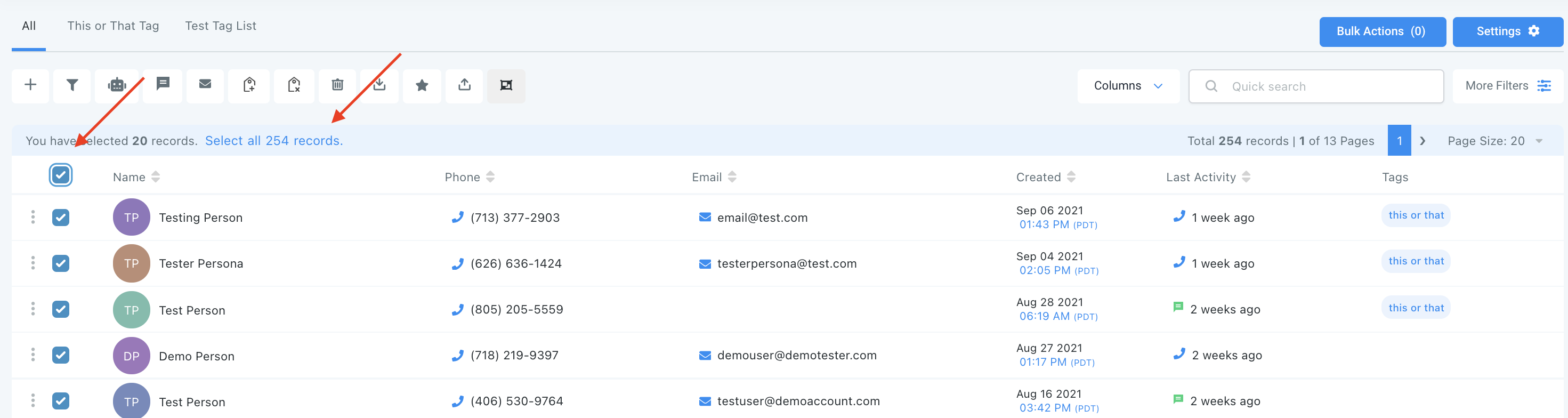
- You can also check the box at the top to select all on that page, and you can click the hyperlink to select all contacts in your system.
Step 2: Choose Your Action
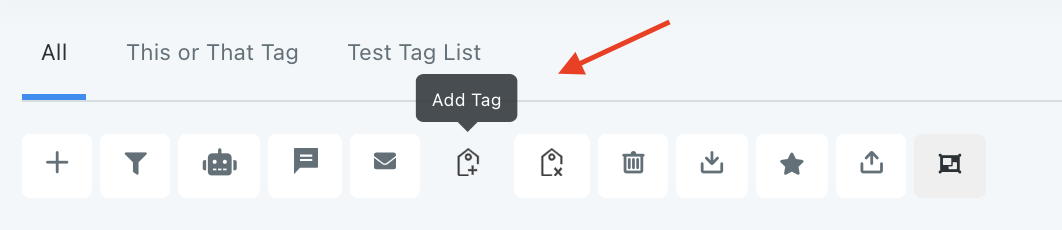
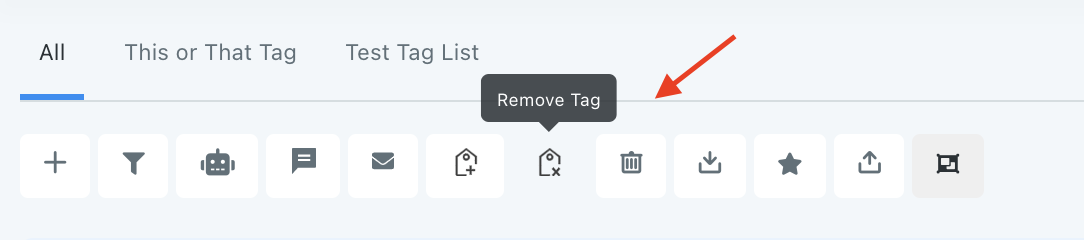
- Choose the icon for “Add Tag” or “Remove Tag”.
- In the pop-up window that appears, type in a keyword and select one or more tags to apply or remove.
Add tags:

Remove tags:

- Then click “add tags” to add them to contacts, or “remove tags” to remove them.