
Contacts & Smart Lists · 1 min read
Bulk Actions - Import and Export Contacts
Using the Bulk Actions features in your Contacts/Smart Lists section, you can perform multiple one-off actions to selected or all contacts. Here’s how to export contacts using the bulk action feature:
Step 1: Choose Your Contacts
- Navigate to your contacts.
- Check the box to select contact records.
- You can also check the box at the top to select all on that page, and you can click the hyperlink to select all contacts in your system.

Step 2: Choose Your Action
- Choose the icon for “Export Contacts”
- This will export a list of selected contact records from the system into a .csv file that will save to your computer.

NOTE:If you wish to import contacts, you may use the bulk action icon here. Please refer to our “How to Import Contacts” tutorial for step-by-step guidance.
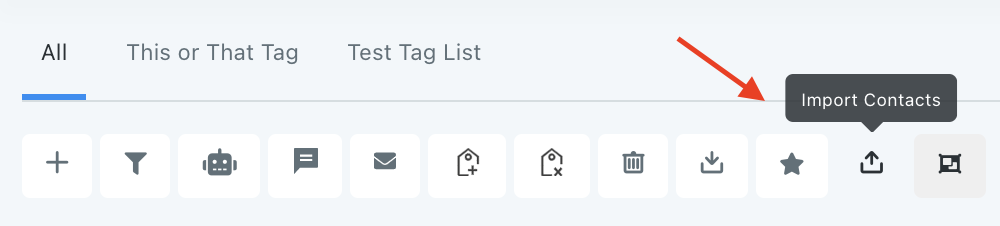
NOTE:If you cannot see the import and export options, please contact your account admin regarding your permissions.
NOTE:All contact records must have a phone number and/or email address in order to import.