Forms & Surveys · 1 min read
How To Add a Bump Offer in Order Forms
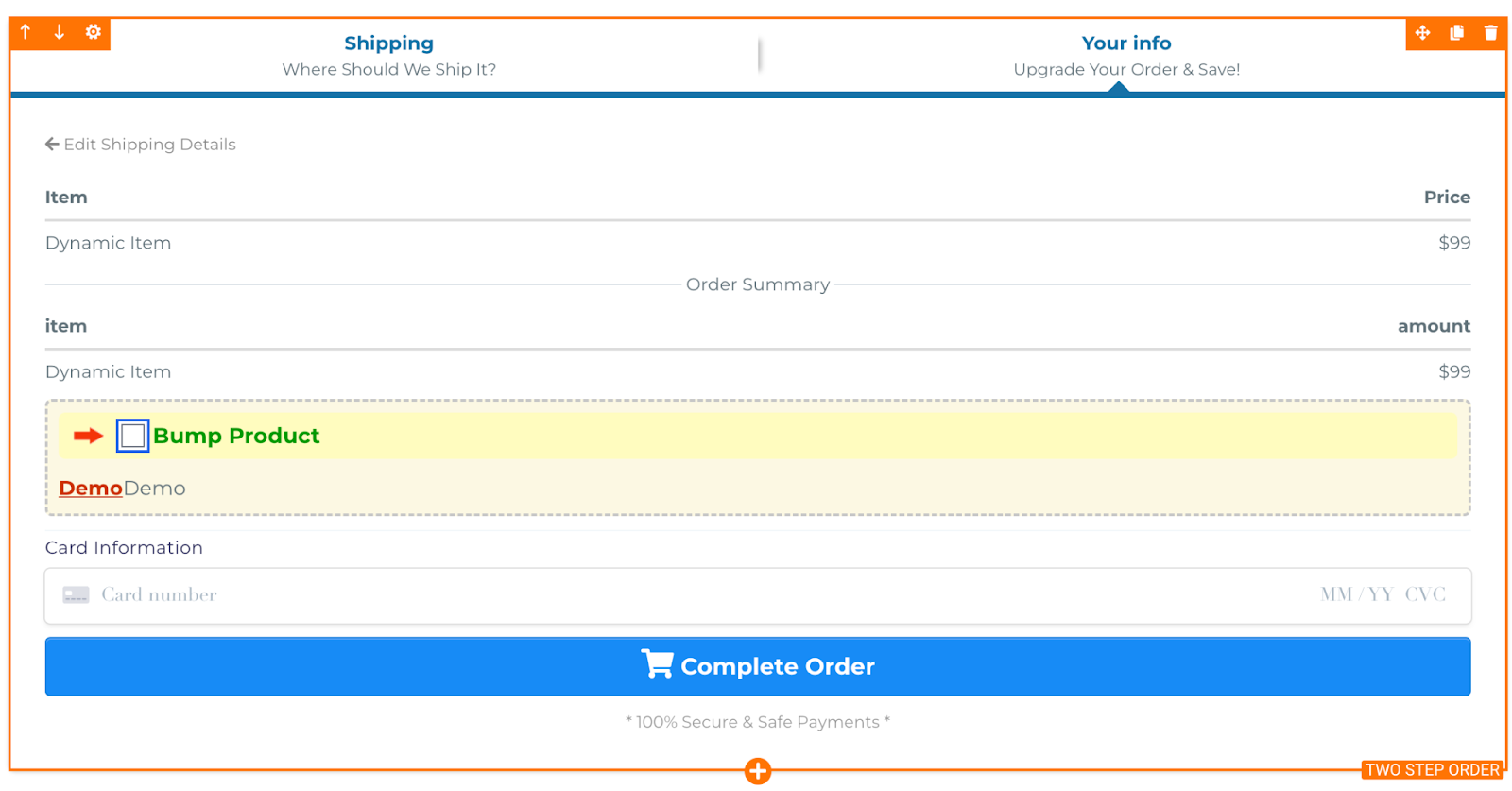
A Bump Product is a pre-checkout offer that is presents an additional product to your customer. The Bump Product is shown in the checkout and can be added to the order with just a click.
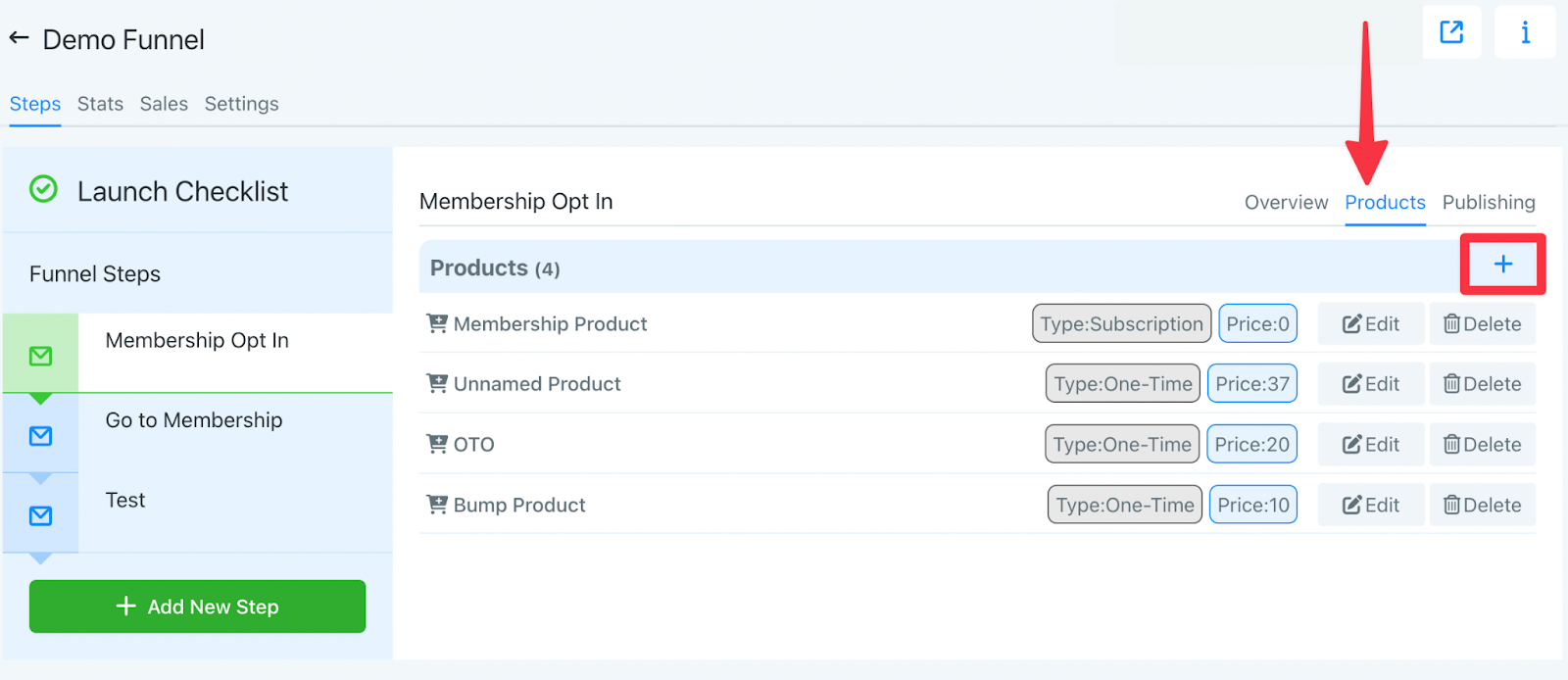
Step One: Navigate to the Sites menu and open the Funnel where you would like to add a Bump Product.
In the right corner, click on ‘Products’ and then click the Add Button. This is the same process you would do to add a regular product to the check out.
Step Two:Select whether you would like the Bump Product to be a Subscription, One-time, or Payment plan product.
- Add a Product name
- Add a Product Price
- If needed, fill in the Price display override
- Add a Product Description
- Turn ONBump Product Toggle

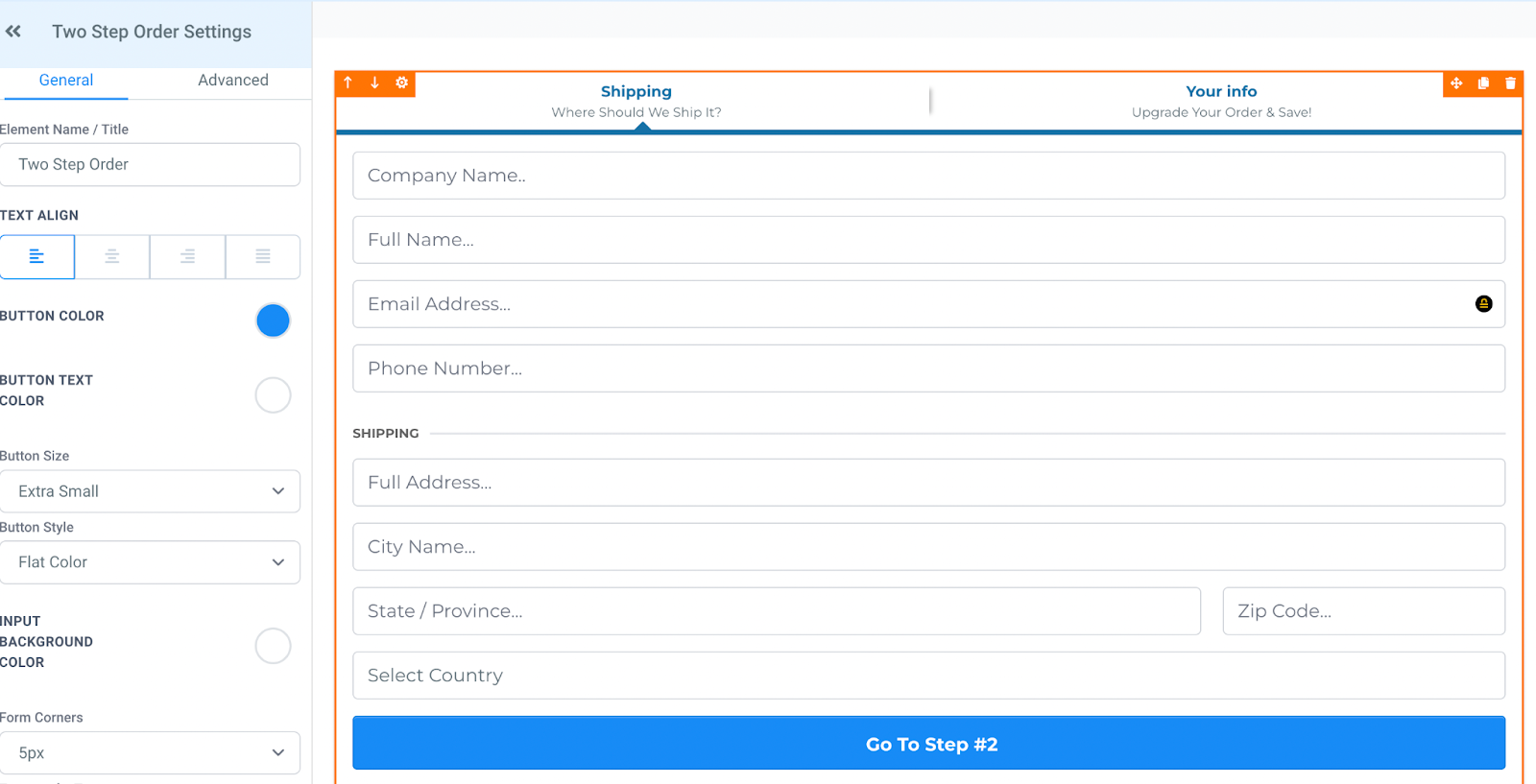
Step Three:Open the Checkout page 2-Step Order Form. Click “Advanced” under the settings on the left hand side.
Scroll down until you see “Order Bump Options”, and toggle “Enable Order Bump” on.
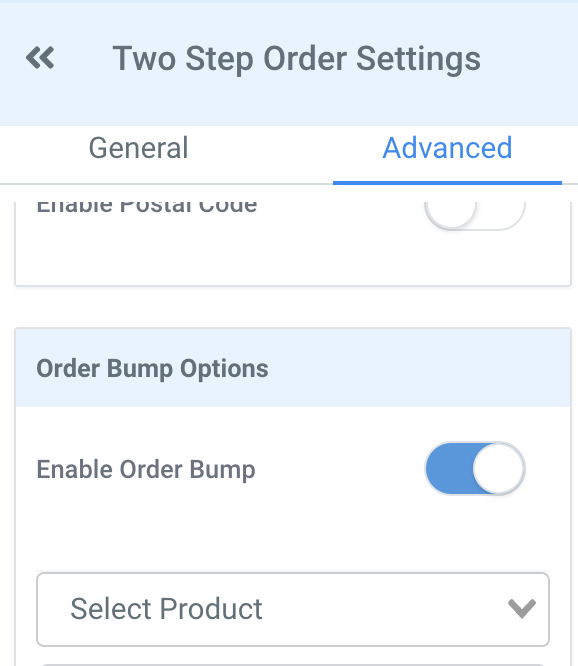
Step Four:Select the Bump product and Save.