Contacts & Smart Lists · 2 min read
Getting Started with Companies
Companies sit beside contacts. Use a company when several people belong to the same business and you want one place for the business details.
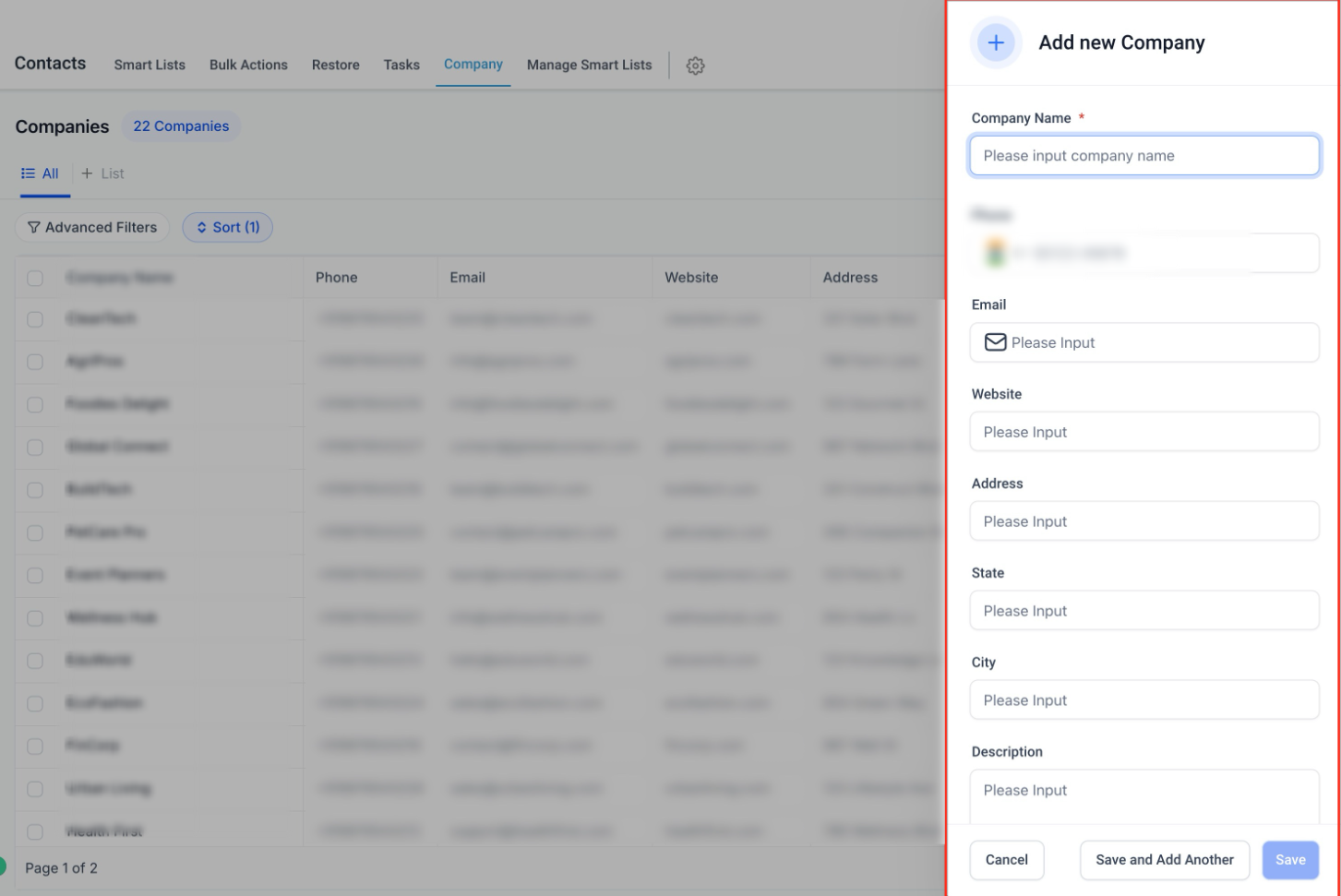
A company record can hold the name, phone, email, website, address, description, and any custom fields you add.
Add or edit a company
- Open Contacts.
- Open the Company tab.
- Click Add Company.
- Fill in the details.
- Click Save.
You can also save and add another if you are entering a list. Edit a company later from the same list when a phone number, address, or description changes.
Several contacts can belong to one company.
Custom fields
Custom fields are for details the standard form does not have, such as industry, employee count, or the service you sell them.
- Click Manage Fields.
- Click Add Field.
- Choose the field type.
- Name the field.
- Assign it to the Company object, not the Contact object.
- Click Save.
If a field does not show up, confirm it was saved on Company. Mark a field as searchable if you want it in search.
Columns, filters, and sort
Manage Fields also controls the columns. Check the ones you want, such as website, city, or a custom field, then apply. That column choice is your current view.
Advanced Filters can use standard fields (email, phone, city, state) and custom fields. Combine conditions with AND or OR. That is how you find companies in one region, companies missing a phone number, or companies in one industry.
Sort by company name, created date, address, city, state, postal code, or a custom field.
Search looks at the company name, phone, email, address, and custom fields that are set as searchable. Column choices stay on your view. Searchable field settings apply more broadly in the account.
If a control is missing
Refresh the page if a filter or sort does not update. If a button is hidden, your user may not have permission for companies. When you ask for help, include the steps, the field or filter name, and a screenshot.