Payments · 3 min read
Creating Products and Pricing Options
Products are what you sell in the online store. Each one can have a description, pictures, a collection, tax settings, one or more prices, and variants such as size or color.
Open products
- Open Payments.
- Click Products.
- Click Create Product.
From the products list you can also import products in bulk.
Product information
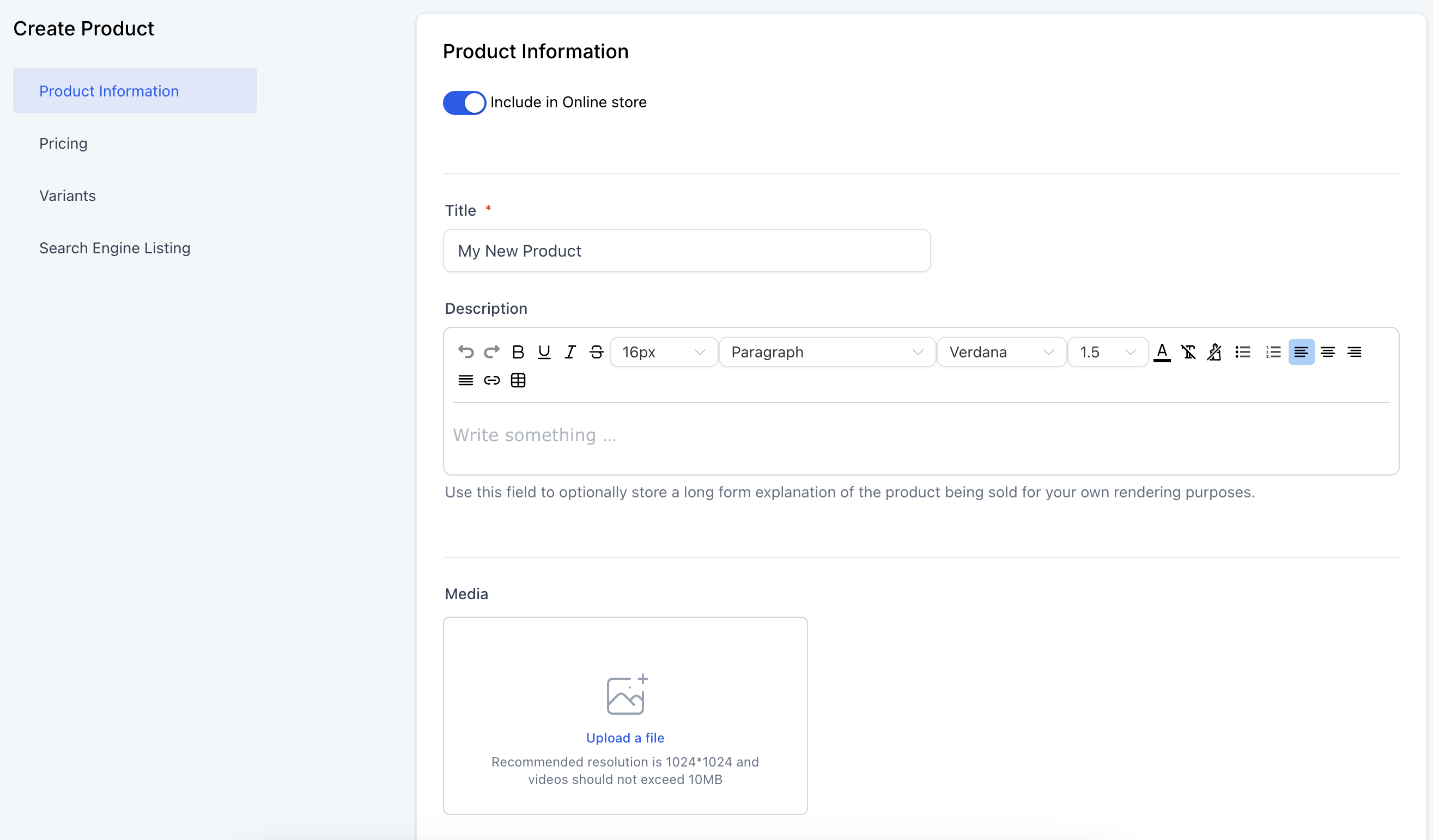
Turn on Include in Online store if the product should appear in the storefront.
Enter a clear title and a description. Upload images in the order you want shoppers to see them. A useful size is about 1024 by 1024. Keep videos at or under 10 MB in this uploader.
Collections
Collections group products, such as seasonal items or a featured set.
- Open the Collections field.
- Search for a collection and assign the product. A product can sit in more than one collection.
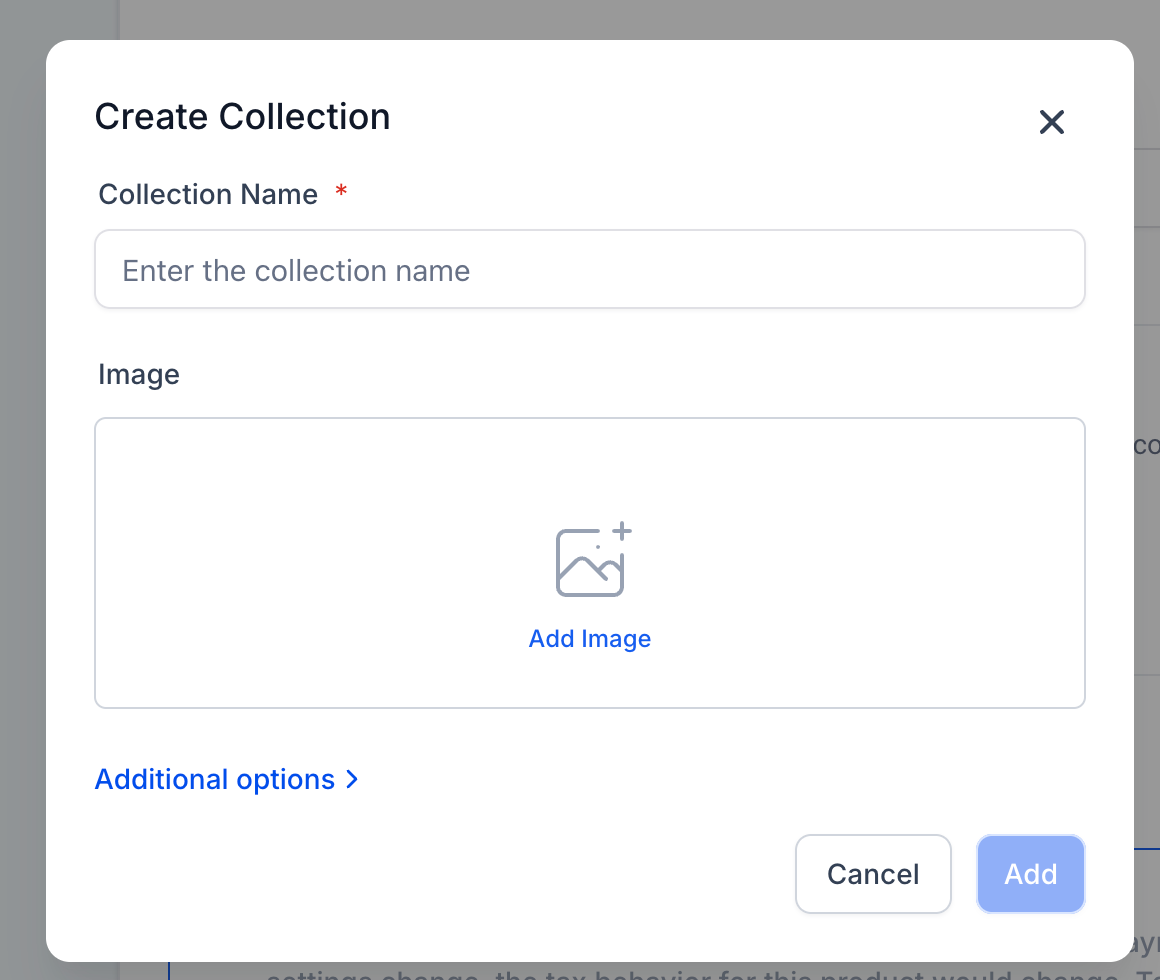
- If you need a new collection, click the + icon, name it, add an image if you want one, and add the product.
Tax
- Product tax code chooses the category used for automatic tax.
- Include tax in prices can follow the global setting, include tax in the price you show, or add tax at checkout.
- Attach tax rates is for a manual rate when automatic tax is not available for that sale.
One-time price
Name the price, choose One-time, and enter the amount.
Optional settings:
- Compare-at price shows a higher previous price next to the current one.
- Track inventory and Available quantity count what you have left.
- Continue selling when out of stock lets people buy after the count hits zero. If this is off, the product cannot be purchased at zero.
You can add more than one price, including a mix of one-time and repeating prices. A description or offer can be attached to a price.
Repeating price
Use a repeating price for a membership, a subscription, or a payment plan.
- Billing period is how often the charge repeats, such as monthly or yearly.
- Trial period is optional days before the first charge.
- Number of payments caps how many times the customer is billed. Leave it open if the plan should continue.
- Setup fee is an optional one-time amount on the first payment.
Variants
- Enter an option name, such as Size or Color.
- Enter the values, such as Small, Medium, and Large.
- Click Done.
Each variant can have its own price, compare-at price, inventory count, and image. That is better than a separate product for every size.
Save, edit, or copy
Review the product and click Save. You can edit it later from the products list.
To copy one:
- Go to Payments, then Products.
- Open the three-dot menu on the product and click Duplicate.
- The copy opens as "Copy of" plus the original name.
- Change what you need and click Save.
The copy keeps the title, description, prices, variants, images, and settings until you change them.