Miscellaneous · 5 min read
A Complete Guide to Media Storage
Media Storage is the library for images, video, audio, documents, and fonts. Open it from Media Storage in the left sidebar. You do not have to go through Settings first.
Preview an image
Image previews can zoom from 100% to 400% with the toolbar, a mouse wheel, a trackpad, a pinch, or the keyboard. Zoom follows the pointer. Click and drag to pan. Full screen expands the picture, and Esc leaves full screen without closing the preview. Drag the floating toolbar, or move it with the arrow keys. Keyboard and screen-reader controls work, and the preview respects Reduce Motion.
Other file types keep their usual preview.
Upload files
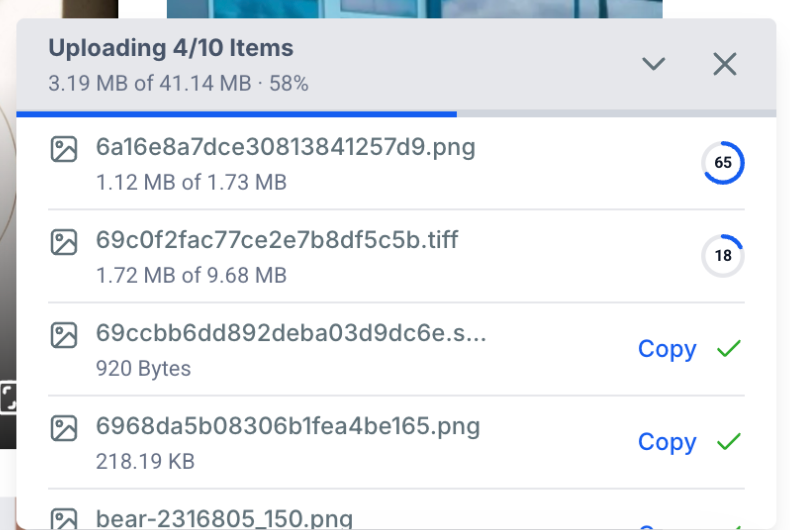
Drag files from your computer into the library. The upload panel shows how many items are moving, how much has transferred, and the overall percent. Each file shows its own progress. A green check marks a finished file.
Font files (
.ttf, .otf, .woff, .woff2) can be up to 100 MB. Use them in Custom CSS for a website or funnel.You can also upload a whole folder. Click Upload, then Upload Folder. The folder structure is kept, up to 3 levels deep and 1,000 files in one upload. A notice tells you if any items were skipped. The browser needs enough free disk space for a folder download later.
To import from a direct file address, click Upload, then Upload URL. Paste a link that ends in a file such as
.jpg, .mp4, .mp3, or .pdf. Wait for the green check, preview the file if a preview appears, confirm you have the right to use it, and click Import. Page links, including video watch pages, are not accepted. After import, the file gets a new address inside Media Storage.Audio types you can import this way include MP3, WAV, M4A, AAC, OGG, and FLAC. Documents include PDF, DOC, DOCX, XLS, XLSX, PPT, PPTX, TXT, and CSV. PowerPoint files and older Word files may import without an in-browser preview.
Private files
You cannot flip a normal library file to private, and there is no "upload as private" switch in Media Storage. A file becomes private only when you upload it as a digital product file while you are setting up that product. A lock on the thumbnail means it is private.
On a private file you can download it, copy a private link, or delete it. A private link lasts 10 minutes. Make a new one if you still need access. Do not paste a private link on a website, funnel, or email that people should open later.
See what storage you are using
Open the three-dot menu and choose Storage. The bar shows the total. Open a module, such as the media library, conversations, memberships, contacts, or calendar, to see images, videos, documents, and audio separately.
Find and arrange files
Sort by name (A to Z or Z to A), size (smallest or largest), or modified date (newest or oldest).
Search covers the whole library, including folders, even if you start the search inside a folder. The same search works in list view. Hover a result to see its folder path. Open the file's three-dot menu and choose Open containing folder to jump there. That also clears the search.
Switch between grid and list. In the grid, an image can show Landscape, Portrait, or Square. In the list, width and height appear next to the name. Older images may not show sizes until background processing finishes.
Right-click a file, or use the hover menu, for Rename, Delete, Move to Folder, Preview, and Insert.
Use files while you are building
Inside a website or funnel, Media Storage opens in a window rather than taking over the screen. You can drop files into that window to upload them before you insert one.
- Insert Media adds the file you select.
- Preview from the three-dot menu before you insert.
- Insert from the preview itself.
- Arrow buttons or the left and right keys move between images and videos.
- Esc closes the preview.
Click the arrow beside Folders to collapse a long folder list. To move a folder and everything inside it, open its three-dot menu, choose Move to Folder, pick or create the destination, and confirm. Subfolders stay intact.
To download a folder as a zip, open the three-dot menu, choose Select, check that folder and any others, then click Download. The zip keeps the folder structure.
Trash
Deleted files go to Trash for 30 days. Open the three-dot menu at the top right and choose Trash. Restore a file or delete it permanently. After 30 days it is gone. Anyone who can sign in to this account can see and restore Trash, which helps if the person who deleted a file no longer has access.
Google Drive
Connect Drive imports files you own in Google Drive. Shared files and shortcuts to shared files do not appear. Make a copy of a shared file in your own Drive if you need it in this list.
File size limits
These are the maximum sizes by file type and by the place you upload from.
| File type | Media library | Social planner | Sites and funnels | Courses | File upload field | | --- | --- | --- | --- | --- | --- | | Images (PNG, JPEG, GIF, TIFF, WEBP, SVG, ICO) | 100 MB | 10 MB | 100 MB | 50 MB | 50 MB | | Video (AVI, QuickTime, MP4, MPEG, Ogg, WMV, WebM) | 4 GB | 1 GB | 4 GB | 5 GB | 50 MB | | Audio | 100 MB | 100 MB | 100 MB | 50 MB | 50 MB | | Documents, spreadsheets, presentations, text, ZIP, CSV, and fonts | 100 MB | 100 MB | 100 MB | 50 MB | 50 MB | | vCard | 100 MB | 100 MB | 100 MB | 50 MB | 50 MB |
Chrome, Firefox, and Safari use the same checks for upload, listing, and preview. If a browser cannot draw a thumbnail, you can still download the file. Very new image types may not thumbnail on an older computer.
A file upload custom value on a form uses the file-upload-field limits in the last column.