Integration & Widget · 1 min read
Wordpress Plugin for Chat Widget
If you’re using Wordpress, check out these simple steps to download and use the Wordpress plugin for your chat widget:
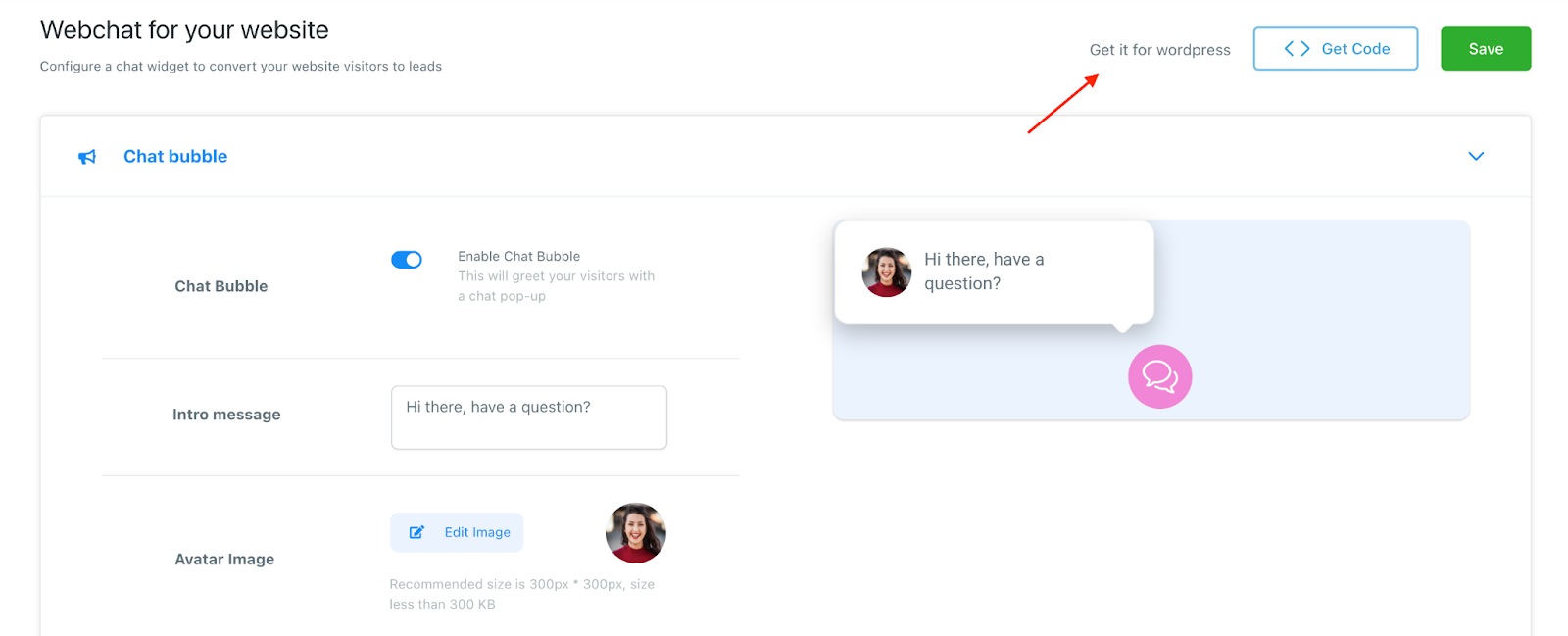
Step 1: Set up your Webchat widget
- Navigate to Sites > Chat Widget
- Create your chat widget and customize any features you wish.
NOTE:Check out our separate tutorials on the Chat Widget for a full customization overview.
Step 2: Download and Install the Wordpress Plugin
- Click “Get it for Wordpress”
- You’ll be redirected to Wordpress and you will want to download the “FunnelStreams” plugin.
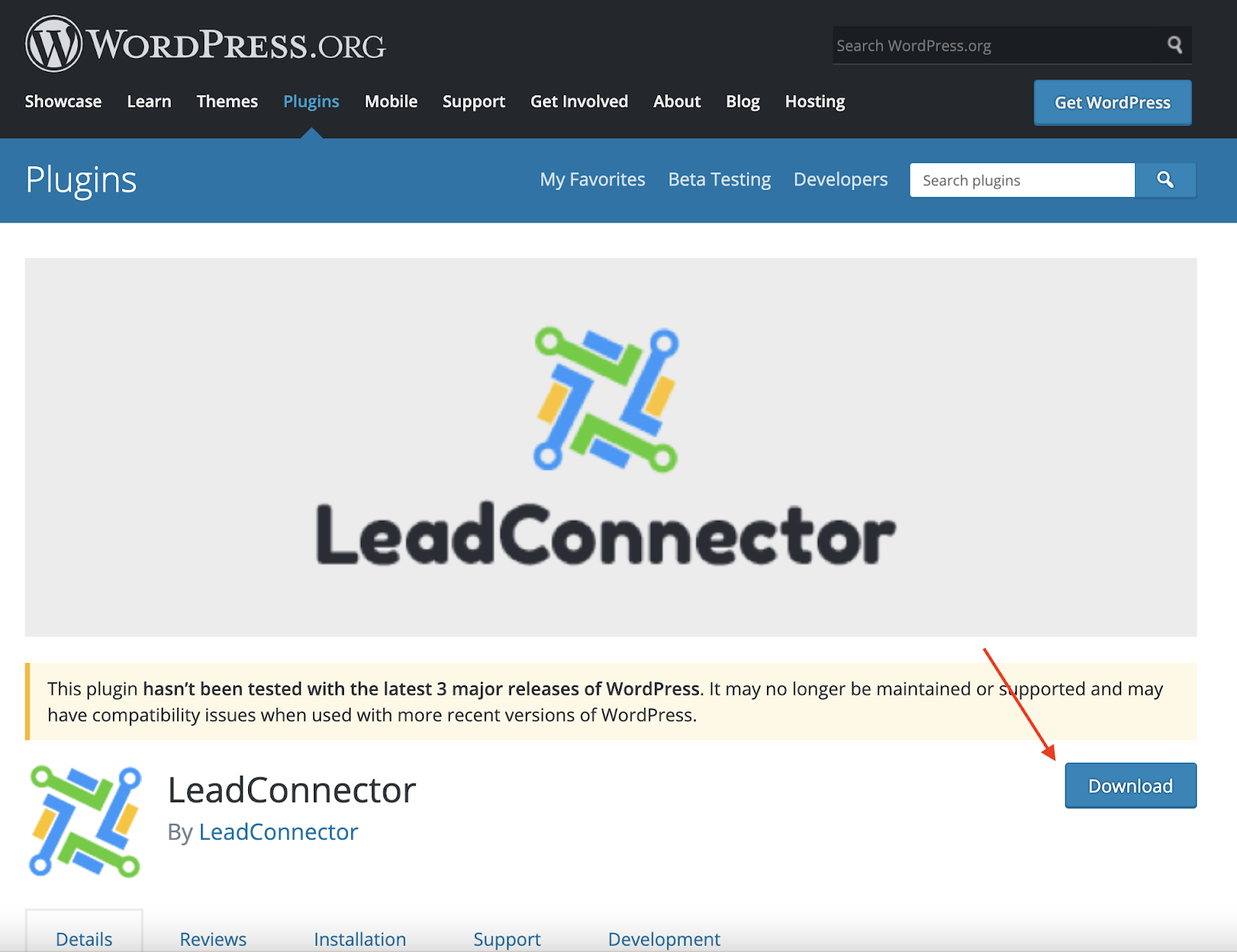
- Once installed, you can access FunnelStreams from your Wordpress dashboard menu.
- You’ll need to add your API key from the system.
- Navigate to Settings > Business Info > Company Data and copy the API key.
- Paste it into the API key under your FunnelStreams widget settings in your Wordpress dashboard.

- Click “Pull and Save” to save the changes and add the widget to your Wordpress site.
Step 3: Retrieve any Updates using the Wordpress Plugin
- Within the system, if you make any changes to your chat widget, you’ll need to pull them through to Wordpress.
- In your Wordpress dashboard, navigate to the FunnelStreams tab and click “Pull Any Updates” to retrieve updates from the system.
NOTE:If you already have the Wordpress plugin installed, you may need to uninstall and reinstall the plugin in order for the most updated version to run. Here’s how to remove and reinstall the plugin:
- Navigate to the Wordpress Dashboard > Plugins
- Under “Active”, deactivate FunnelStreams
- Go to the “Inactive” tab and click Delete to remove FunnelStreams.
- Then, follow the steps above to reinstall it.
